
Setting Up Outlook to Read DreamHost Email
November 7th, 2010
You’ve selected DreamHost as your hosting company and now you need to configure Outlook to read your email from your website. Here are the necessary steps to configure Outlook. If you need to configure Outlook Express, please read this article on how to set up Outlook Express. This article has been updated for Outlook 2007.
Here we go!
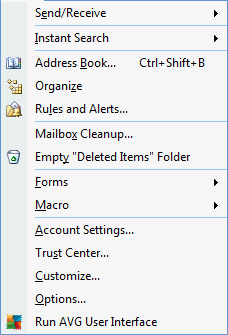
1. From the top menu, select “Tools” and “Account Settings“.
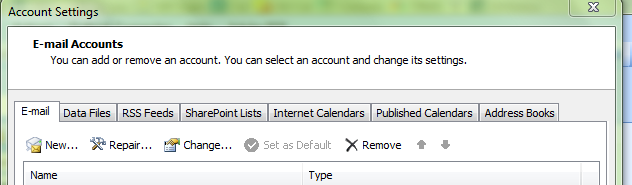
2. Under E-mail Accounts, select “New“.
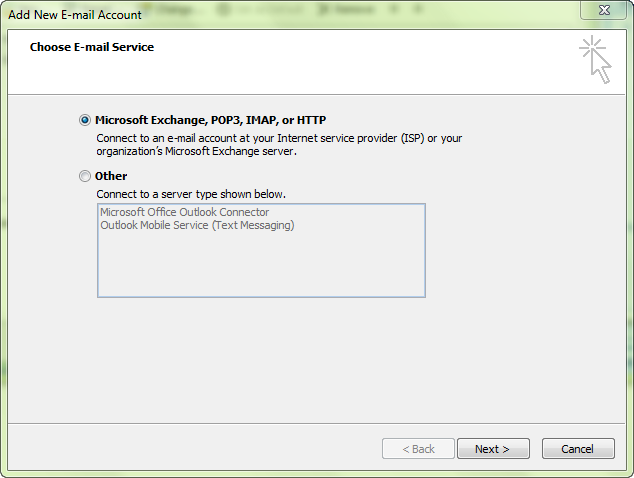
3. Under Choose E-mail Service, select “Microsoft Exchange, POP3, IMAP or HTTP” and click “Next“.
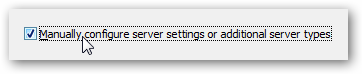
4.Check “Manually configure server settings or additional server types”
5. Select “Internet E-mail”
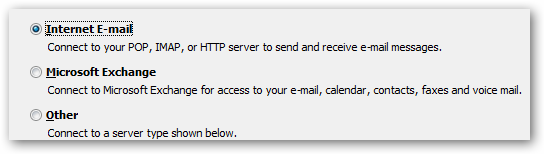
6. On the Internet E-mail Settings window, enter your information as follows:
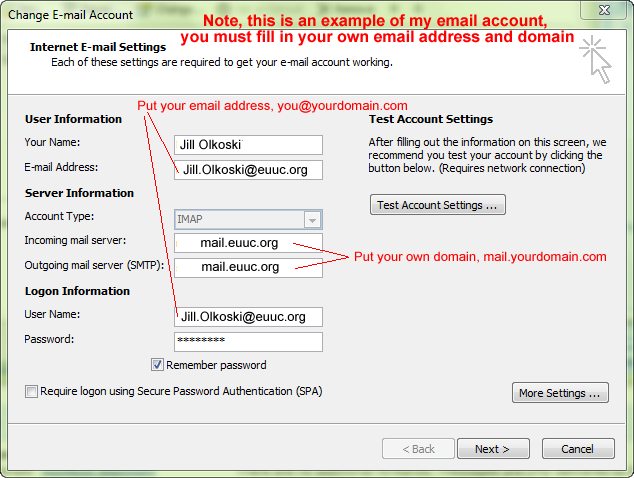
This is an example if I was trying to set up an email address of Jill.Olkoski@euuc.org on DreamHost. You must replace my info with your own website email and domain name.
You should replace “Your Name” with your name, “Jill.Olkoski@euuc.org” with your email address, and “mail.euuc.org” with your your domain name where the euuc.org is, so it would be “mail.yourdomain.com”.
Do NOT check “Require logon using Secure Password Authentication (SPA)”.
7. Click “More Settings…”
Select the Outgoing Server tab.
Check the box next to “My outgoing server (SMTP) requires authentication” and make sure the first radio button is highlighted.
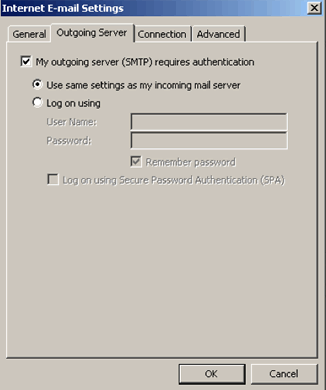
8. (Optional) Make a mental note that under “Advanced” is where you can change the port settings. Don’t make changes to this page now, but if the set up doesn’t work you may need to come back to this page. See my troubleshooting section below. The screen shot is set for using POP3. If you are using IMAP instead of POP3, the Incoming server should be set to 143.

9. That’s it, you’re done. Click “OK“, “Test Account Settings” and if both pass, select “Close“, “Next” and “Finish“. (You’re not done until you see Congratulations and hit Finish!!!)
Troubleshooting Outgoing Mail Problems: On occasion, you will be able to receive emails, but not send them. If this is the case, then you may need to contact your internet service provider (ISP) to see if they have specific settings for sending outgoing email.
For example, I had a client who used Verizon for her internet service provider, and Verizon blocks port 25, so in her case, we needed to set the outbound port to 587. I had another client who uses AdvancedCable.net, and in his case, we needed to change the Outgoing Mail Server to smtp.myacc.net. For a Frontier client, we finally had success with setting IMAP Incoming Server set to port 143 and SMTP outgoing server set to 587. So your solution will depend on your specific internet service provider. Note that if you use your ISP for your outgoing email server, you will need to know your ISP’s username and password.
So if you’ve followed these directions, and you can receive but not send, give your internet service provider a call and tell them you’re trying to set up Outlook email, and ask what settings for outgoing email you should set.
Ports That Have Worked Best For My Clients:
POP3 Incoming Mail Server Port 110 for Standard and Port 995 for SSL
IMAP Incoming Mail Server Port 143 for Standard and Port 995 or 993 for SSL
SMTP Outgoing Mail Server Port 587 for Standard and Port 465 for SSL
POP3 vs IMAP for Incoming Mail Server – I recently helped a client set up Outlook on her computer, and noticed that in Outlook, if you add a POP3 email account, it simply directs that incoming mail to your main Inbox that’s listed under Personal Folders. However, if you add a IMAP email account, it will create a separate Inbox with it’s own sub folders for sent, trash, etc. This is another aspect to consider if you’re using Outlook and choosing between POP3 and IMAP for your incoming mail server.
And, if the attempt at setting up Outlook has proven too frustrating, try switching to Thunderbird – so much more user friendly, and free.
Jill--------------
J. Olkoski
Aldebaran Web Design, Seattle
Jill Olkoski has a BS in Engineering, a BS in Computer Science and an MA in Clinical Psychology. She delights in using her advanced technical and psychological skills to help small business owners develop cost-effective and successful websites.
February 4th, 2008 at 5:45 am
I love your Tutorials Jill…even when they don’t really apply to me!
Could you be persuaded to write one on http://FTP…specifically FileZilla if you are familiar with it? It still “throws” me…
In 5 to 10 easy steps, I would like to be able to add plug-ins and other things (like “Share This”) to my WordPress blog without having to call out to my very busy Techie friends for help!
I am talking “the whole nine yards” here…start to finish…
Starting with, “ok, so you have found this WP plug-in you want on your WP blog”….all the way to …”and there it is…on your WP blog.”
The more elementary, the better…for us more severely “techno-challenged” types!
Thanks a million Jill!
~Linda~
March 16th, 2008 at 10:50 am
Hi Linda,
Try downloading FireFTP and following instructions here:
http://www.simplehelp.net/2007/10/15/how-to-use-ftp-from-within-firefox/
There are also instructions here for how to add a WordPress Plugin:
http://lorelle.wordpress.com/2007/02/11/how-to-install-configure-and-use-wordpress-plugins/
Since most of my clients don’t use FTP, I didn’t want to write a post that would encourage them to FTP into their websites and inadvertently do some damage.
November 29th, 2008 at 11:39 am
Hi,
I am not able to set up the email outlook account for my website. It is not recognizing my user name/password. I also don’t know if I have the right port numbers 995 and 465.
Please let me know how to reset my password/user name.
Thanks
Cristina
November 30th, 2008 at 10:07 am
Hi Cristina,
Please keep in mind, this is a blog, not a tech support service – and so I recommend you contact your website hosting company for this specific info.
June 2nd, 2009 at 8:41 pm
Sorry, I’m Jill, the author. Cristina, the other woman who said her username/password is not my client – I have no idea whether she is a DreamHost customers or not, and clearly, if she’s getting a username/password error, there’s something else amiss. Again, I’ve done this literally dozens of times and it’s worked, and if you have really specific suggestions as to how to improve, I’m happy to modify once I verify they indeed work. But I’ve never even modified port settings for DreamHost/Outlook – never had to.
June 29th, 2009 at 6:56 am
I didn’t know Dreamhost even offered POP3. Thanks for the tip.
September 13th, 2010 at 10:13 am
This is fantastic, Jill. Thanks for putting it together. I’m a Mac user, so it’s always been tricky helping my clients and friends who use Outlook. Your tutorial is clear, concise, and accurate.
November 7th, 2010 at 10:46 am
[…] can configure these mail applications to read your email from euuc.org. Here are two helpful links: Configuring Outlook to Read Your Email General Help Reading Email From DreamHost (euuc.org’s new hosting […]
July 26th, 2011 at 5:33 am
Thank you for taking the time to help the anonymous masses. Your information about changing ports for SMPT allowed me to send a VERY important email.
This is much appreciated.
July 26th, 2011 at 2:00 pm
Hi Ged,
Thanks for the comment – I know what it’s like to find the perfect solution on the web, so whenever possible, I post ones I’ve found. Glad it helped! Outlook and the various ISP’s can be tricky.
November 2nd, 2012 at 1:57 pm
we currently use Dreamhost to host our website and our email is through Dreamhost’s Squirrell Mail. We want to switch to Outlook for our mail and caelendars using Dreamhosut email configuration which i got your instructions for. Can you share Outlook calendars using this service do you know? we are a small charity who all work at diff. locations and being able to share at least Outlook calendars so we can check one anothers appts and whereabouts would be great. thanks
November 2nd, 2012 at 2:00 pm
Hi Elane,
No, since DreamHost only provides email service, when you configure Outlook to retrieve the email, that’s all you’re doing, is getting email from DreamHost’s servers and pulling it into Outlook. DreamHost (or any hosting company email) has nothing to do with Outlook Calendar functionality. I don’t know how to share Outlook Calendar between different work groups, I’ve only done it with a Gmail Calendar.